Screenshots
App details
- Version
- 3.7
- Size
- 4.86 MB
- Updated
- March 9, 2017
- Requires
- Windows 95
- Language
- English | Spanish | French | Portuguese
- License
- Trial version
- Developer
- Lleida
- Category
- Windows OS
SoftPas in:
This product is also available in the following languages:
About Multimedia sMs
Download Multimedia sMs – Free SMS & MMS Messaging Tool for Windows
Multimedia sMs is a lightweight, reliable software designed for sending SMS and MMS messages directly from your Windows PC. This utility, developed by Lleida, offers a simple yet powerful solution for users who need to manage mobile communications without relying on their smartphone. With support for multiple languages including English, Spanish, and French, Multimedia sMs caters to a global audience. Despite its last update in 2011, it remains a popular choice—especially in India—where users appreciate its ease of use and minimal system requirements. The software is available in both trial and free versions, making it accessible to a wide range of users. Whether you're sending a quick text, sharing photos, or managing bulk messages, Multimedia sMs delivers a smooth experience. Its compatibility with older Windows systems like Windows 95 makes it a rare gem for legacy PC users. With over 16,000 downloads since 2011, it’s clear this tool has stood the test of time. For those seeking a secure, fast, and free way to send multimedia messages from their computer, Multimedia sMs is a solid option worth exploring.
Key Features of Multimedia sMs
One of the standout aspects of Multimedia sMs is its ability to send both SMS and MMS messages directly from your Windows PC. Unlike many modern messaging apps that require internet connectivity or cloud-based services, this software connects via a mobile phone or modem, enabling direct communication with mobile networks. This feature is particularly useful for users who prefer to keep their messaging centralized on their desktop, especially in business or administrative environments where efficiency matters.
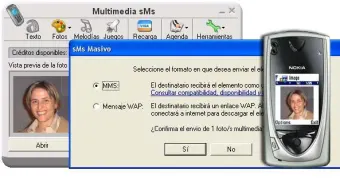
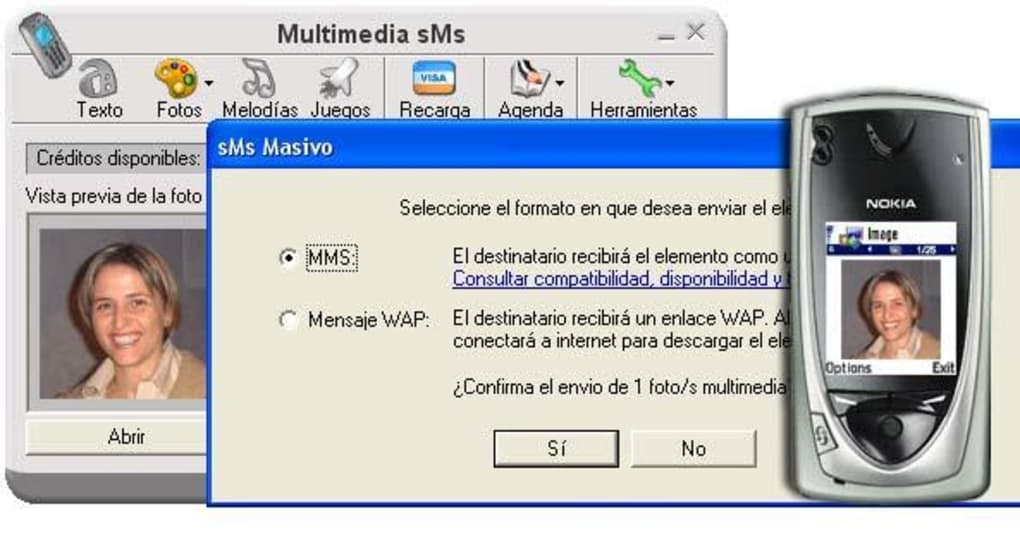
The software supports rich media content, allowing users to send images, videos, and audio files as MMS messages. This is a significant advantage over basic SMS tools that only allow text. Whether you're sharing a photo from a recent event, sending a short video clip, or forwarding an audio note, Multimedia sMs handles it with ease. The interface is clean and intuitive, making it simple to attach files, write messages, and send them with just a few clicks.
Another notable feature is its multilingual support. Available in English, Spanish, and French, it ensures accessibility for users across different regions. This multilingual capability enhances usability for international users or those managing communications across language barriers. Additionally, the software is designed to be lightweight, consuming minimal system resources—ideal for older PCs running Windows 95 or similar legacy systems.
For users who need to send bulk messages, Multimedia sMs offers a contact list integration feature, allowing you to save and organize recipients for repeated use. This is especially beneficial for marketing campaigns, event reminders, or school notifications. The program also supports message scheduling, so you can set a message to be sent at a specific time, ensuring timely delivery without manual intervention.
How to Install and Use Multimedia sMs
Installing Multimedia sMs is straightforward, especially for users familiar with older Windows environments. First, download the installer from a trusted source. Since the software is available in both trial and free versions, choose the one that suits your needs. The installation process typically involves running the setup file, accepting the license agreement, and selecting your preferred installation directory.
After installation, launch the application. You’ll be prompted to configure your mobile device connection. Multimedia sMs supports both USB-connected mobile phones and serial/USB modems. For phones, ensure your device is connected via a data cable and recognized by your PC. The software will detect the device automatically in most cases. If not, you may need to install the appropriate drivers from your phone manufacturer’s website.
Once the device is connected, you can begin composing messages. Click on the “New Message” button, enter the recipient’s phone number, and type your text. To send an MMS, click the “Attach” button and select the file you wish to include—be it a photo, video, or audio file. The software will compress the file appropriately for MMS delivery. You can also use the built-in contact list to save frequently used numbers and reduce typing errors.
For advanced users, the software offers options to set message priority, schedule delivery, and even log sent messages for record-keeping. These features make it ideal for small businesses, educators, or individuals managing multiple communication tasks. After sending a message, you’ll receive a confirmation prompt, ensuring successful delivery.
Compatibility and System Requirements
One of the most remarkable aspects of Multimedia sMs is its broad compatibility with older Windows operating systems. It supports Windows 95, Windows 98, Windows ME, Windows NT, and Windows 2000—making it one of the few messaging tools still functional on legacy hardware. This is a major advantage for users who still rely on older PCs in schools, small offices, or personal setups where upgrading isn’t feasible.
While newer versions of Windows (like Windows 10 or 11) may not officially support the software, some users have reported success using compatibility mode. To do this, right-click the executable file, select “Properties,” go to the “Compatibility” tab, and choose “Windows 95” or “Windows XP (Service Pack 3)” as the compatibility mode. This workaround allows the program to run on modern systems, though results may vary depending on hardware and driver support.
The software is also available in multiple languages, including English, Spanish, and French, enhancing its global appeal. It doesn’t require a constant internet connection—only a working mobile device or modem—making it ideal for users in areas with limited or unreliable internet access. The minimal storage footprint (under 10 MB) ensures it won’t slow down older machines.
For users with Android or iOS devices, Multimedia sMs is not directly compatible. However, if your smartphone supports USB mass storage or modem mode, you can still connect it to your PC and use the software. This flexibility makes it a versatile tool for users who want to leverage their existing mobile hardware without switching platforms.
Pros and Cons of Multimedia sMs
- Pros:
- Free and lightweight—perfect for older PCs
- Supports both SMS and MMS with multimedia attachments
- Compatible with Windows 95 and earlier systems
- Multi-language interface (English, Spanish, French)
- Simple, intuitive user interface
- Supports bulk messaging and contact list management
- Can be used without an internet connection
- Low system resource usage
- Cons:
- Last update was in 2011—no modern security patches
- Not compatible with Windows 10/11 out of the box
- No mobile app version for Android or iOS
- Limited customer support due to age
- May require manual driver installation for some devices
- Outdated design compared to modern messaging apps
Frequently Asked Questions (FAQ)
- Is Multimedia sMs free to download?
Yes, Multimedia sMs is available in a free version, allowing users to send SMS and MMS messages without cost. While a trial version exists, the free version offers full functionality for basic use.
- Can I send MMS messages with Multimedia sMs?
Yes, one of the key features of Multimedia sMs is the ability to send MMS messages. You can attach images, videos, and audio files directly from your PC and send them to mobile numbers.
- Which Windows versions are supported?
It supports Windows 95, Windows 98, Windows ME, Windows NT, and Windows 2000. While not officially supported on Windows 10 or 11, some users have successfully run it using compatibility mode.
- Do I need an internet connection to use it?
No, Multimedia sMs does not require an internet connection. It works through a connected mobile phone or modem, making it ideal for offline environments.
- Can I use it with my Android or iPhone?
While there’s no dedicated mobile app, you can connect your Android or iPhone via USB if it supports modem or mass storage mode. The software will recognize the device and allow message sending.
- Is it secure to use?
As a legacy tool last updated in 2011, Multimedia sMs lacks modern security updates. Use it only on trusted systems and avoid sending sensitive information. Always ensure your device is protected with up-to-date antivirus software.
Final Verdict: Is Multimedia sMs Worth Downloading?
Despite its age, Multimedia sMs remains a surprisingly functional tool for users who need to send SMS and MMS messages from their Windows PC. Its lightweight design, support for multimedia, and compatibility with older systems make it a unique choice in today’s app-heavy world. While it lacks modern features like cloud sync, encryption, or mobile integration, its core functionality is solid and reliable.
For individuals in India, small businesses, or educational institutions still using legacy hardware, this software offers a cost-effective and efficient solution. The free version provides full access to essential features, and the minimal system requirements ensure smooth performance even on underpowered machines.
If you’re looking for a secure, free, and simple way to manage mobile messaging from your desktop—especially on older Windows systems—Multimedia sMs is definitely worth a download. Just remember to use it cautiously on modern systems and avoid sensitive data.
Download Multimedia sMs today and take control of your messaging without the need for a smartphone.
Guides & Tutorials
How to install Multimedia sMs
- Click the Download button above.
- Once redirected, accept the terms and click Install.
- Wait for the Multimedia sMs download to finish on your device.
How to use Multimedia sMs
This software is primarily used for its core features described above. Open the app after installation to explore its capabilities.
User Reviews
No reviews yet. Be the first to share your experience.
You may also like
more
Llama 2
Free-to-use large language model As the new addition to Meta’s arsenal of langua...

NotebookLM
Revolutionizing the note-taking and idea-generation process NotebookLM is an exp...

Github co pilot
AI-inspired software development and coding platform GitHub Copilot is a browser...

Google Gemma
Google’s lightweight AI models Introducing Google Gemma , a family of cutting-ed...

AI Image Enlarger
A free app for Windows, by ai-image-larger. AI Image Enlarger is a free software...

DALL E
AI-driven text-to-image transformation engine DALL·E is a free graphic and desig...